
And the thing Microsoft buries in fine print could leave your inbox looking completely abandoned while you’re sipping drinks on a beach somewhere.
Quick Facts
| Topic | What You Actually Need To Know |
| Best version for OOO | New Outlook / Outlook Web (most consistent experience) |
| Works without your PC on? | YES — but only on Exchange/Microsoft 365 accounts |
| POP/IMAP accounts (Gmail, Yahoo) | NO native OOO — requires a rules workaround, AND your PC must stay on |
| Internal vs. External messages | You can write two completely different messages |
| Biggest rookie mistake | Forgetting to set an end date and spamming people for weeks |
| Mobile setup | Available in the Outlook app — buried under your profile icon |
| Where most people get stuck | Not knowing their account type before searching for the button |
Here’s the thing nobody says out loud: setting an out-of-office reply in Outlook isn’t one process. It’s about four different processes depending on which version you’re using, which account type you have, and apparently, whether Microsoft felt like keeping things consistent that week.
And yet every tutorial you find online acts like it’s just “File > Automatic Replies, done.” Cool. Thanks.
The reality is messier. More interesting too, honestly.
First, Know What You’re Actually Working With
Before you click a single thing, you need to answer one question. Is your email account connected to Microsoft Exchange or Microsoft 365?
Because if it’s not — if you added a personal Gmail or a Yahoo account to Outlook — that shiny “Automatic Replies” button either won’t appear, or it’ll be completely useless to you.
Work accounts from your company, school, or organization? Almost certainly Exchange. Those get the full, proper server-side automatic reply system. Your PC can be off, your laptop lid shut, Outlook completely closed — the server handles everything in the background. Replies still go out.
Personal accounts linked through IMAP or POP3? Different story. You’re stuck using a workaround involving email templates and Rules, and here’s the kicker: Outlook has to stay open and running the entire time you’re away. Close it and replies stop dead. That’s not a bug. That’s just how these protocols work. And it’s a fact a lot of guides quietly skip over.
The New Outlook Configuration (If You Have It)
Microsoft spent years fragmenting Outlook across versions. New Outlook for Windows, classic Outlook, Outlook Web, Outlook Mac, Outlook Mobile — each one slightly different. Classic, genuinely frustrating.
But New Outlook (the current one, with the gear icon sitting in the top-right corner) is the most straightforward version right now.
Open it. Look for the gear. Click it. Inside Settings, go to Accounts > Automatic Replies. Flip the toggle on.
You’ll immediately see two things. A scheduling option and two message boxes. Use the scheduling option. Seriously. Set a start date and an end date. This is the single most important thing you can do. Without an end date, the reply fires indefinitely. You come back from your two-week trip, resume life, forget the thing is still on — and it keeps telling people you’re unavailable. For days. Sometimes weeks. People notice.
One box is for internal messages (colleagues, teammates). One is for external contacts (clients, vendors, that newsletter you forgot you subscribed to). Write different things in both. Your coworkers can handle “I’m on holiday, back Monday.” Your clients probably deserve a slightly more formal acknowledgment and a backup contact name.
Hit Save. That’s literally it.
Classic Outlook — Still Hanging Around In A Lot Of Offices
Many enterprise environments haven’t pushed the New Outlook update yet. Some IT teams actively resist it. So classic Outlook is still very much a thing.
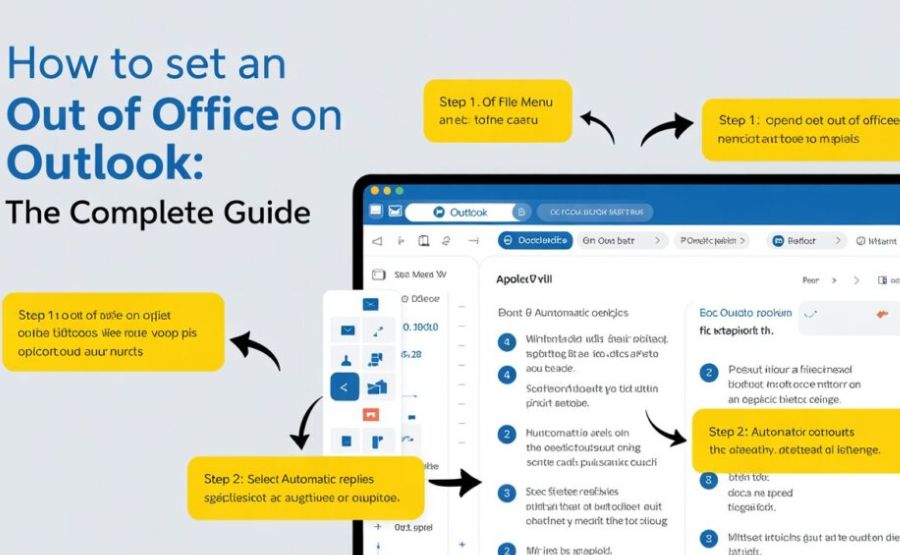
Go to File in the top ribbon. Look for Automatic Replies (Out of Office) in the Info section. If you see that button, you’re on Exchange, and you’re set. Click it, select “Send automatic replies,” optionally check the date range box, write your internal and external messages, hit OK.
Done. Easy.
If that button doesn’t exist? Your account isn’t Exchange. Which brings us to the duct-tape-and-prayers approach.
The Rules Workaround: When You’re Stuck With IMAP
Here’s where it gets properly technical and a little annoying.
First, you create an email template. Open a new email, write your out-of-office message, then go to File > Save As and pick Outlook Template (.oft) as the file type. Remember where you saved it because you’ll need it in about 30 seconds.
Now go to File > Manage Rules & Alerts > New Rule. Start from a blank rule. Choose “Apply rule on messages I receive.” Click Next until you get to the action screen. Select “reply using a specific template.” Click the underlined link, navigate to your saved .oft file, open it.
Continue through the wizard, name your rule, make sure it’s turned on, hit Finish.
And then leave your computer running. Because again — the moment you close Outlook, those replies stop. If you’re going on a ten-day vacation, your replies are active only while your machine is powered up and connected. If your laptop goes to sleep, they stop.
This is why, honestly, the smarter move for personal account users is just to set an out-of-office directly through your email provider’s own web interface. Gmail has “Vacation Responder” in its settings. That runs server-side. No laptop required.
Outlook Web: The Underrated Option
A lot of people don’t realize Outlook Web (outlook.office.com) is often the fastest way to set this up — especially if you’re mid-commute or operating from a borrowed device.
Sign in through the browser. Click the gear icon in the top right. Under Account settings, you’ll find Automatic Replies. Toggle it on, schedule it, write your messages, hit Save.
Same feature. Same interface as New Outlook. Works across any browser. And because it’s server-side on Exchange accounts, your actual device doesn’t need to stay on.
The web version also tends to be slightly more reliable at syncing across devices. If you set it on your desktop and something weird happens, checking the web version is always a good sanity check.
Mobile: Yes, It Works. Here’s Where They Hid It
People forget about mobile entirely until they’re already boarding a plane.
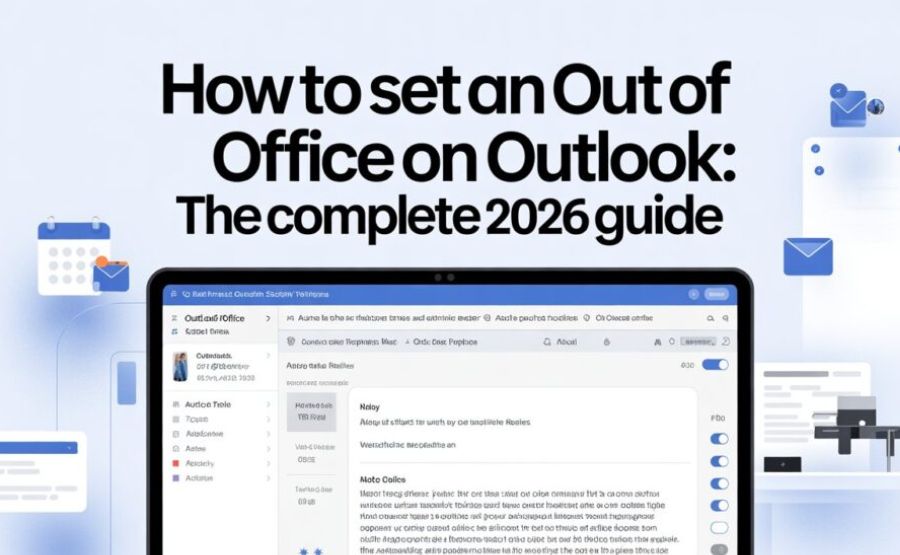
Open the Outlook app. Tap your profile picture or initials in the top left corner. Hit the gear icon in the bottom left. Scroll down until you find “Automatic Replies.” Toggle it on.
You can schedule a time window, block calendar invites, and even auto-decline meetings during your absence. That last feature is underused and incredibly useful. Nothing says “I actually disconnected” like meetings auto-declining with a polite note that you’re out.
The only catch: mobile setup is still limited to Exchange and Microsoft 365 accounts. IMAP accounts on mobile don’t get this option at all.
The Out-of-Office Message Itself: Stop Overthinking It
People agonize over the text in ways that make no sense. Keep it short. Four or five sentences, maximum.
Tell them you’re out. Tell them when you’re back. Tell them who to contact if something is burning. That’s the whole message.
The internal version can be casual: “Out until the 15th. Email me when I’m back. Urgent? Hit up [Name] at [email].”
The external version deserves slightly more polish. Formal greeting, dates, alternate contact, professional sign-off. That’s it.
What kills me is when people write paragraphs. Nobody is reading a 200-word out-of-office. They’re skimming for a date and a phone number.
Also — and this gets said rarely enough that it’s worth saying clearly — do NOT over-promise on behalf of your backup contact. Don’t write “Sarah will respond within the hour.” You don’t know that. You’re not there. Sarah might be in her own meetings. Please write “for urgent matters, please reach out to Sarah.” The timeframe should not be included.
And the humor thing. Sure, a witty OOO message is fun. But the joke has to work for every single person who emails you — your boss, a new client, a vendor you’ve never met. If there’s any doubt, just… don’t.
The Things People Forget Until It’s Too Late
One thing that doesn’t get enough attention: the out-of-office system sends a reply to each person only once per absence period. That’s intentional. It prevents email loops. But it means if someone emails you five times during your two-week vacation, they only got your OOO once. The first time.
Also worth knowing: by default, the external reply goes to everyone who emails you. Every newsletter, promotional email, automated system. That’s a lot of spam getting an acknowledgement. Most guides recommend limiting external replies to known contacts only, especially if you’re privacy-conscious about confirming your email is active.
And when you get back? Turn it off immediately. Not “when you remember.” Right away. People who receive multiple emails from a recently-returned colleague while the OOO is still running start to wonder whether anyone’s actually home.
Final Words
Outlook’s out-of-office system is genuinely good when you’re on Exchange or Microsoft 365. Server-side, reliable, works across every device without your computer running. The dual message system — different content for internal vs. external — is smart. Scheduling with an auto-shutoff date is smart.
But Microsoft’s handling of IMAP/POP3 accounts is, honestly, a cop-out they’ve been making for years. The rules workaround is clunky. Requiring your computer to stay on is absurd in 2026. Plenty of third-party email clients figured this out long ago. Microsoft just… hasn’t prioritized it.
And the whole “New Outlook vs. Classic Outlook” situation? That’s still a mess. Different navigation paths, different terminology, same underlying feature. The documentation is scattered across a dozen support pages that contradict each other on minor details.
If you’re on a work account with Microsoft 365, setting OOO is genuinely painless. Ten clicks, done, go on vacation. If you’re not — good luck, bring snacks, and maybe just set your out-of-office reply directly through Gmail or Yahoo’s own settings instead of wrestling with Outlook’s rules system.
FAQs
1. Do I need Outlook to be open for out-of-office to work?
Only if you’re using an IMAP or POP3 account with the rules workaround. On Exchange or Microsoft 365, the server handles it independently. Your computer can be completely off.
2. Why is the Automatic Replies button not visible to me?
Your account is probably IMAP or POP3. The button only appears for Exchange/Microsoft 365 accounts. Check your account type at File > Account Settings > Account Settings, then look in the Type column.
3. Can I write different messages for colleagues and clients?
Yes. Exchange accounts give you separate boxes for inside your organization and outside your organization. Use them. Your clients shouldn’t be reading the same blunt internal message you sent to your team.
4. What occurs if I neglect to establish a deadline?
Your out-of-office keeps firing indefinitely until you manually turn it off. People will keep receiving it long after you’re back at your desk. Always set an end date.
5. Will out-of-office reply to every email, including spam?
By default, yes — for external senders. You can limit it to contacts only, which is the smarter option for most people. Otherwise you’re confirming your email address to every newsletter and marketing campaign that pings you.
6. Can I use Outlook Mobile to set up OOO?
Yes, through the Outlook app. Tap your profile image > gear icon > Automatic Replies. Exchange accounts only, though. IMAP accounts don’t get this option on mobile.
7. Someone emailed me three times while I was away. Did they get three OOO replies?
No. The system sends only one reply per sender per out-of-office period. This prevents the kind of endless reply loops that would completely tank everyone’s inbox.
8. Can I set out-of-office for a shared mailbox?
Yes, but it’s slightly more involved. In New Outlook, you’d need to add the shared mailbox as a separate account with Full Access permissions, then set up automatic replies specifically for that account — not your main one.
9. Does setting OOO in Outlook also update my Microsoft Teams status?
Yes, actually. Exchange and Microsoft 365 automatically push your OOO status to Teams, which updates your availability indicator and feeds your out-of-office content into your Teams status message. Helpful if your team uses both.
10. My classic Outlook won’t show the Automatic Replies dialog properly. What’s wrong?
Screen resolution or scaling settings can sometimes cause the OK button to disappear. Try adjusting your display scale in Windows settings. Also make sure your version of Outlook is updated — older builds sometimes have rendering quirks in specific dialog boxes.
11. Should I turn off my out-of-office the night before I return, or when I actually get back?
Just before you go to work in the morning when you return, turn it off. Turning it off the night before is risky — early emails that night won’t get any reply. Turning it off after you’ve already responded to a few emails looks weird. The first thing in the morning works perfectly.
12. Is there a way to schedule OOO in advance without turning it on immediately?
Yes. When you enable Automatic Replies and use the “Only send during this time range” option, you can set a future start date. It won’t activate until that date and time arrive. The day before you depart, set it and don’t think about it.
Keep discovering, connecting, and thriving with The Nexus Magazine every day.